import Tabs from '@theme/Tabs'; import TabItem from '@theme/TabItem';
This chapter describes common errors you might encounter while using Sipmon MAP. Please read the questions and answers below before contacting our support team.
We will continue to update this section based on your feedback.
General
How can I check if my Sipmon MAP server is running correctly?
Their are two main ways to check if your Sipmon MAP server is up and running.
First of all, check that Sipmon MAP service is running. To do so, connect through SSH to the server hosting Sipmon MAP and run the following command:
systemctl status Sipmon-mapYou should receive the following output:
Sipmon-map - Sipmon Studio map server
Loaded: loaded (/usr/lib/systemd/system/Sipmon-map; disabled; vendor preset: disabled)
Active: active (running) since ...
If your Sipmon MAP service is stopped the message will be:
Sipmon-map - Sipmon Studio map server
Loaded: loaded (/usr/lib/systemd/system/Sipmon-map; disabled; vendor preset: disabled)
Active: inactive (dead)
In this case, start the Sipmon MAP service:
sudo systemctl start Sipmon-mapOnce you are sure your server is running, try to access its API through your web browser. Check the REST API used by the web interface as follows:
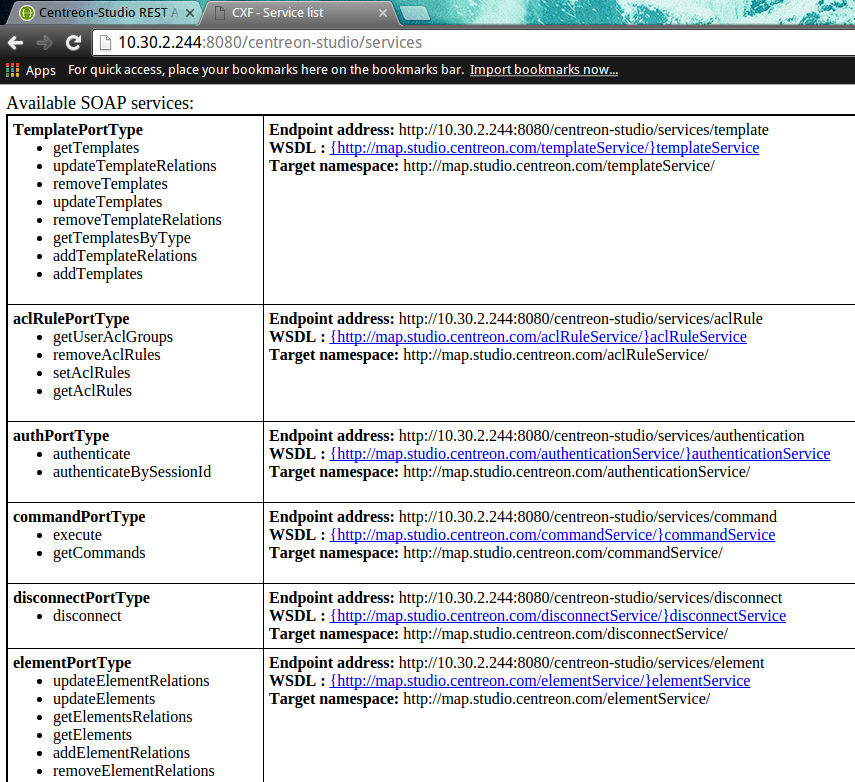
You can also check the SOAP API used by the desktop client:
My Sipmon MAP service is running but I cannot access Sipmon MAP API (/actuator/health) pages
You might want to check if the server containing Sipmon MAP has a firewall preventing it from running correctly. Run the following command:
systemctl status iptablesIf you see this output...
iptables: Firewall is not running....then the problem is elsewhere.
If you have this output...
Table: filter
Chain INPUT (policy ACCEPT)
num  target     prot opt source               destination
1    ACCEPT     all  --  0.0.0.0/0            0.0.0.0/0           state RELATED,ESTABLISHED
2    ACCEPT     icmp --  0.0.0.0/0            0.0.0.0/0
3    ACCEPT     all  --  0.0.0.0/0            0.0.0.0/0
4    ACCEPT     tcp  --  0.0.0.0/0            0.0.0.0/0           state NEW tcp dpt:22
5    REJECT     all  --  0.0.0.0/0            0.0.0.0/0           reject-with icmp-host-prohibited

Chain FORWARD (policy ACCEPT)
num  target     prot opt source               destination
1    REJECT     all  --  0.0.0.0/0            0.0.0.0/0           reject-with icmp-host-prohibited

Chain OUTPUT (policy ACCEPT)
num  target     prot opt source               destination
then your firewall is running, preventing any connection from and to your Sipmon MAP server. You must either add input and output rules for Sipmon MAP or disable your firewall.
To open the appropriate ports:
/sbin/iptables -A OUTPUT -p tcp --dport <PORT> -j ACCEPT
/sbin/iptables -A INPUT -p tcp --dport <PORT> -j ACCEPT
Replace <PORT> by the port your Sipmon MAP server is using (mostly 8080 or 8443 if you have configured it in SSL).
To simply disable your firewall, execute:
systemctl stop iptablesMy images from Sipmon Web are not displayed in Sipmon MAP
Sipmon MAP automatically imports all images from Sipmon Web into its own database. On your desktop client, you should see all your files from Sipmon Web under the Media tab panel in the "Sipmon" folder. If not, you may want to verify the following:
On your Sipmon MAP server, open the file /etc/my.cnf and check if the line following line is present:
max_allowed_packet = 20MThen reload your MariaDB database:
sudo systemctl reload mysqldWait a few minutes for the Sipmon MAP server to synchronize Sipmon Web resources. The images from Sipmon Web should then appear on your desktop client under the Media tab panel in the Sipmon folder.
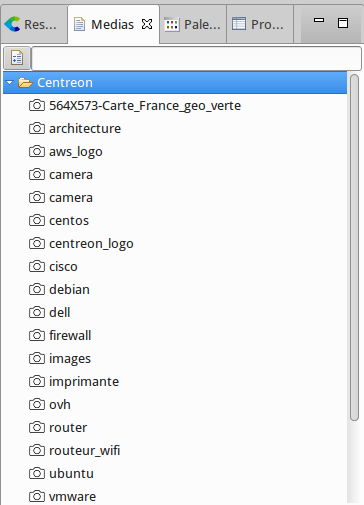
If you still cannot see the list of images check your Sipmon MAP configuration file.
Mistakes when editing configuration files can lead to malfunctions of the software. We recommend that you make a backup of the file before editing it and that you only change the settings advised by Sipmon.
Connect through SSH to your Sipmon MAP server. Open the studio-config.properties file:
vim /etc/Sipmon-studio/studio-config.propertiesFor the 'Sipmon.url' variable, check that there is a full path to your Sipmon Web interface:
Sipmon.url=http://<CENTRAL_IP_ADDRESS>Don't forget to replace "http" with "https" if your Sipmon Web interface is using HTTPS.
Wait a few minutes for the Sipmon MAP server to synchronize the Sipmon Web resources. The images on Sipmon Web should then appear on your desktop client in the Sipmon folder.
Sipmon MAP desktop client
The desktop can't start: "Java was started but returned exit code = 13"
The desktop client does not start and an error message "error code = 13" is displayed.
Install a 64-bit JVM.
Impossible to create a new view
On the desktop client, if you want to create a new view but the button is disabled, you do not have the access rights.
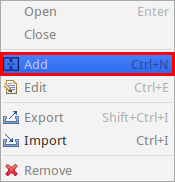
A Sipmon MAP administrator must authorize you to create, update or delete views. When you first install your Sipmon MAP server, only Sipmon administrators are MAP administrators. It is their job to grant administration privileges to other "normal" Sipmon users.
Impossible to import media
When you right click on the Media panel, the Import button is disabled.
There are two facts you should know about media:
The Sipmon folder, which is created automatically, contains all the images from Sipmon Web:
- You cannot add or remove any image from this folder,
- All images are at the same level (no subfolders).
You cannot import images at the root of the media panel.
The solution is to create a new folder (e.g., Icons).
Then right click on this folder and select Import.
I cannot see the "MAP 3 Import menu."
You want to import views from MAP 3 to Sipmon MAP >= 4.x but the corresponding menu is missing.
Please check the following prerequisites:
- Your MAP 3 license is still valid.
- Your Sipmon Desktop Client version is at least v4.0.8 (you can check it directly from your desktop client interface, in the Help > About menu).
- If there is a proxy between your computer and your Sipmon Web interface, you must define it in the Configure menu.
The proxy must be configured with the checkbox use for internet.
- On the Sipmon MAP server configuration file (/etc/Sipmon-studio/studio-config.properties) you entered the IP of your Central server.
This IP is also used by your desktop client to the access MAP 3 API. If this IP is not reachable by your desktop client (because both your Sipmon MAP server and Sipmon Central server are on a DMZ) you must specify a new one to your desktop client. To do so, edit the file:
Add the following line at the end of the file on a new line, where <CENTRAL_IP_ADDRESS> is the URL with which you access the web interface of Sipmon Web from your computer:
-DSipmon.url=<CENTRAL_IP_ADDRESS>An error occured when I open a geographic view
If you open a geographic view or container and your background is composed of gray with Xs and the following pop-up message...
"Error while retreiving Mapbox tiles. Please check your Mapbox configuration."
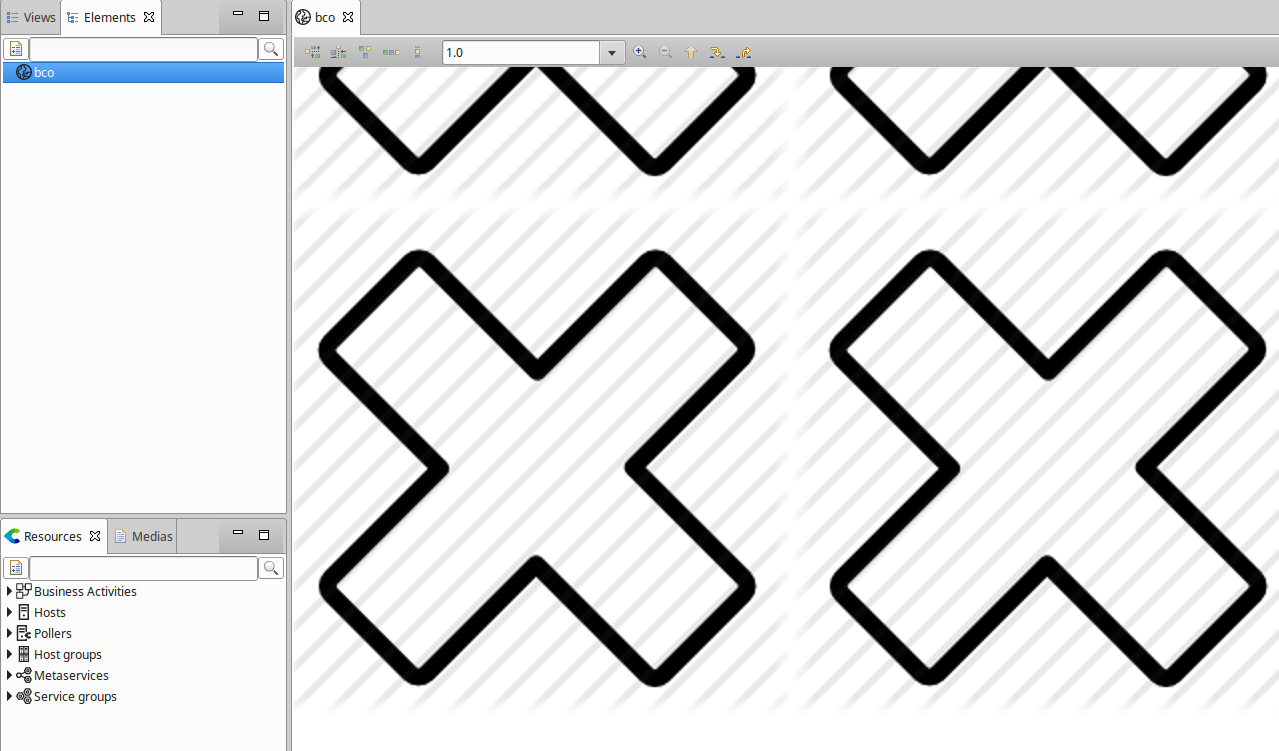
then you should check the following:
- Ensure that your Mapbox credentials are valid. To configure your Mapbox credentials. Your Mapbox secret key may have changed. Since you cannot see the previously created keys, you might want to create a new one and add it in your Sipmon MAP server configuration file.
- If your computer is behind a proxy to gain internet access, please configure this proxy in the Sipmon MAP Desktop Client.
- The Mapbox style you used on your view might have been deleted.
Try to edit your view / container and change the Mapbox style:
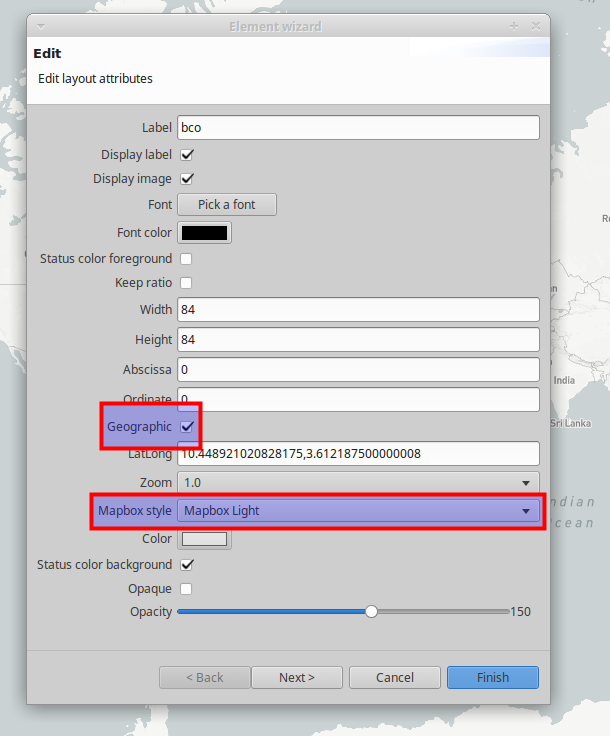
If you cannot select any style the issue is probably caused by one of the above (i.e., credentials, proxy or deleted style).
Error with special characters
If you try to use characters in labels that are not using latin1 encoding and get a pop-up error displaying "Could not execute statement" on your desktop client, your database is probably in latin1. To change the database to UTF-8 encoding, you need to access your Sipmon MAP server in SSH and execute the following commands:
# systemctl stop Sipmon-map
# mysqldump -uusername -p -h \<HOST\> Sipmon\_studio \> dump.sql
# cp dump.sql dump-fixed.sql
# vim dump-fixed.sql
:%s/DEFAULT CHARACTER SET latin1/DEFAULT CHARACTER SET utf8 COLLATE
utf8\_general\_ci/
:%s/DEFAULT CHARSET=latin1/DEFAULT CHARSET=utf8/
:wq
# mysql -uusername -ppassword -h \<HOST\> \< dump-fixed.sql
# systemctl start Sipmon-map
My Desktop client is slow and I often get disconnected
Depending on your Sipmon server's monitoring perimeter (the number of services running) and the computer hardware configuration, your desktop client might need more RAM than it uses by default. It may start to freeze and try to free up more memory. You can check this behavior by opening your task manager (Ctrl + Maj + Esc) and checking the memory consumption. If it increases and seems to reach a limit while your CPU is working hard, your desktop client requires more memory.
Increase the memory
- To increase memory, edit the .ini file:
- Add the following line at the end of the file, on a new line:
-Xmx4gThe "4g" means 4 GB (by default it can only use 2 GB). You can change this number depending on your hardware (e.g. by setting "3g").
Change the status synchronization interval
If you have a Sipmon platform with many hosts and services, the desktop client may spend a lot of time getting the latest status of each resource.
- Edit the same file as in the previous step and add this line to increase the interval of status synchronization:
-Dsync.delay=14400000Dsync-relay is in milliseconds, so 14400000 means the desktop client will refresh the status every 4 hours.
- Then restart your desktop client.
At the launch, it can take time to synchronize the status, but you will be able to edit your map after this operation.
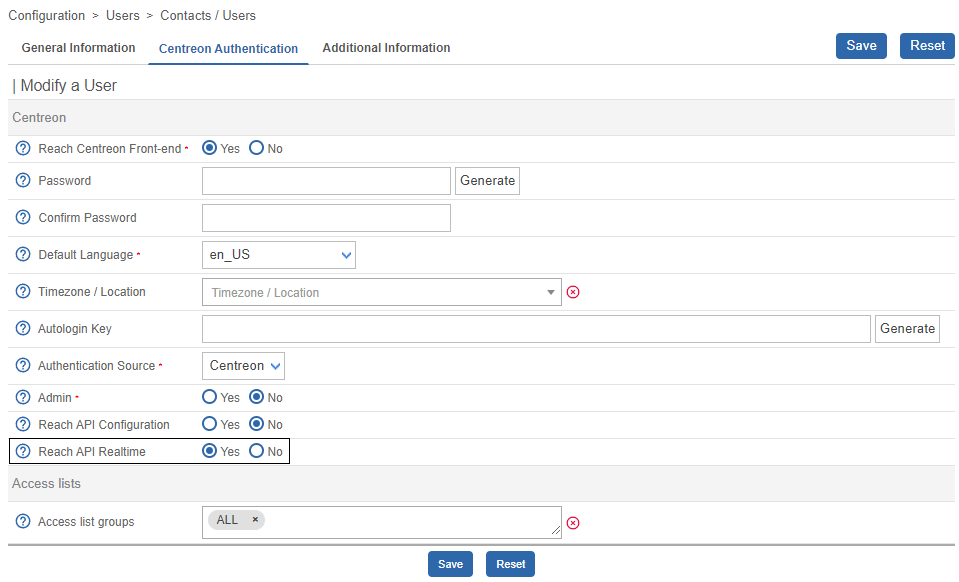
I get the error "Cannot authenticate user" on the login page
For Sipmon Web >= 2.8.6, verify that your user has checked the option "Reach Real Time API."
I'm using Windows Remote Desktop (RDP) and I have many errors
If you are using Sipmon MAP Desktop Client through a Remote Session (with RDP, for instance), you might encounter an error displaying a number of pop-ups like "128" or "512" rendering your desktop client unusable.
To prevent this from happening, you need to change a parameter in your RDP application:
Go to Advance > Display and select "Highest quality (32bit)". You can then access your remote computer and this error will no longer occur.
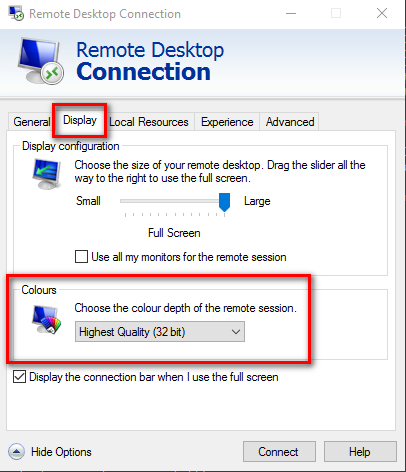
For Linux or Mac users of the application rdesktop, add this argument to your command line: [-a 32]
This error may occur if you use the skin "Windows server" on your computer. Go to your windows parameter and change the color settings to use 32bit colors.
Sipmon MAP web interface
"Failed to authenticate" error when connecting to the MAP homepage
Symptom
A "Failed to authenticate" error occurs in the MAP homepage when trying to connect to the Sipmon MAP Legacy service.
Problem
The credentials used by the Web interface user (defined during the installation) to connect to the MAP Legacy module are no longer valid because they have been changed, probably due to a password expiration.
Solution
You can update the password by accessing this file: /etc/Sipmon-studio/studio-config.properties.
Graphs are all shifted to the right after upgrading from Sipmon MAP 4.4 to Sipmon MAP 18.10
A bug affecting the web interface was shifting all the graphs to the left compared to their position in the desktop client. This has been fixed in Sipmon MAP 18.10. If you have manually shifted the graphs to the right to compensate in the web interface, all your graphs will be over-shifted to the right after the upgrade.
We have provided a script that automatically unshifts all the graphs to the left. Do not use this script if you know most of your graphs were correctly positioned after the upgrade: you would have to manually unshift the others.
Here is the SQL script that fixes the offset manually created by a user for correct alignment in the web interface.
To execute it:
Make a backup of your Sipmon_studio database.
Go to /etc/Sipmon-studio/utils/
Run the script:
shellmysql Sipmon_studio < update-position-graph.sqlRestart Sipmon Map service:
shellsystemctl restart Sipmon-map
My web interface is displaying "Authentication error."
The following error might appear on your web interface.

First, check if you have access to the Sipmon MAP server APIs.
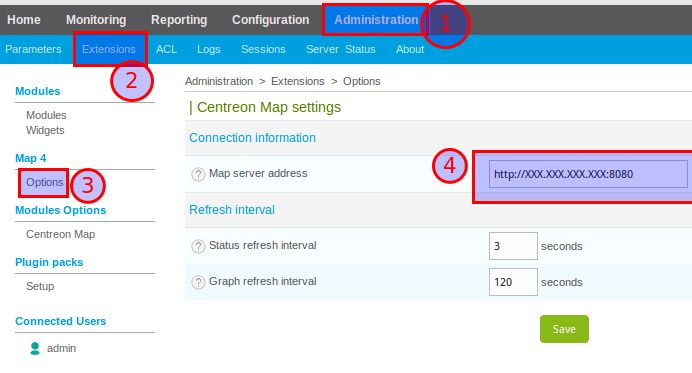
From Administration > Extensions > MAP > Options, check your Sipmon MAP web interface configuration:
The URL set in 'MAP server address' must include the protocol (HTTP or HTTPS) and the port used by your Sipmon MAP server (usually 8080 for a normal connexion or 8443 for a secure connexion).
My web interface displays an empty page
Your web interface is configured but it displays an empty page:
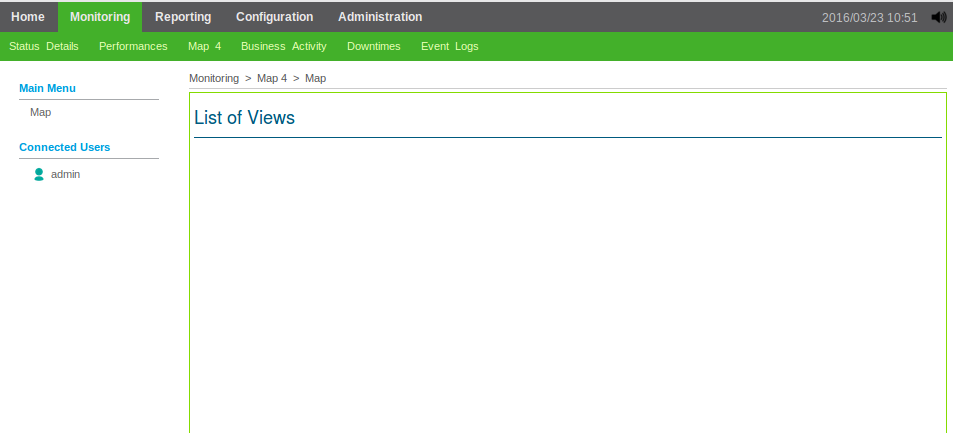
Either no views are created on the server or you do not have access to them.
If you are a Sipmon MAP administrator, you can see all views. In this case, no views have been created. Here are quick start instructions to create one.
Otherwise, contact the Sipmon MAP administrator or create your own views if you have sufficient privileges.
HTTPS
Error: Cannot connect to remote License Manager {} in Sipmon-map.log
You may encounter an error like this one in Sipmon-map.log:
[2021-11-09 13:40:49.178] [ERROR] [c.c.s.m.s.b.l.LicenseVerificationService] [main] : Cannot connect to remote License Manager {}
java.util.concurrent.ExecutionException: org.springframework.web.client.ResourceAccessException: I/O error on GET request for "https://10.25.5.178/Sipmon/api/index.php": Certificate for <10.25.5.178> doesn't match any of the subject alternative names: [www.company.net, company.com, company.net]; nested exception is javax.net.ssl.SSLPeerUnverifiedException: Certificate for <10.25.5.178> doesn't match any of the subject alternative names: [www.company.net, company.com, company.net]
        at java.base/java.util.concurrent.FutureTask.report(FutureTask.java:122)
        at java.base/java.util.concurrent.FutureTask.get(FutureTask.java:205)
        at com.Sipmon.studio.map.server.business.license.LicenseVerificationService.refreshLicense(LicenseVerificationService.java:145)
        at com.Sipmon.studio.map.server.business.license.LicenseVerificationService.verifyLicenseTask(LicenseVerificationService.java:96)
        at com.Sipmon.studio.map.server.business.license.LicenseVerificationService.onApplicationEvent(LicenseVerificationService.java:83)
        at com.Sipmon.studio.map.server.business.license.LicenseVerificationService.onApplicationEvent(LicenseVerificationService.java:36)
        at org.springframework.context.event.SimpleApplicationEventMulticaster.doInvokeListener(SimpleApplicationEventMulticaster.java:172)
        at org.springframework.context.event.SimpleApplicationEventMulticaster.invokeListener(SimpleApplicationEventMulticaster.java:165)
        at org.springframework.context.event.SimpleApplicationEventMulticaster.multicastEvent(SimpleApplicationEventMulticaster.java:139)
        at org.springframework.context.support.AbstractApplicationContext.publishEvent(AbstractApplicationContext.java:403)
        at org.springframework.context.support.AbstractApplicationContext.publishEvent(AbstractApplicationContext.java:360)
        at org.springframework.context.support.AbstractApplicationContext.finishRefresh(AbstractApplicationContext.java:897)
        at org.springframework.context.support.AbstractApplicationContext.refresh(AbstractApplicationContext.java:553)
        at org.springframework.boot.web.servlet.context.ServletWebServerApplicationContext.refresh(ServletWebServerApplicationContext.java:143)
        at org.springframework.boot.SpringApplication.refresh(SpringApplication.java:758)
        at org.springframework.boot.SpringApplication.refresh(SpringApplication.java:750)
        at org.springframework.boot.SpringApplication.refreshContext(SpringApplication.java:397)
        at org.springframework.boot.SpringApplication.run(SpringApplication.java:315)
        at org.springframework.boot.SpringApplication.run(SpringApplication.java:1237)
        at org.springframework.boot.SpringApplication.run(SpringApplication.java:1226)
        at com.Sipmon.studio.map.server.SipmonMapServerApp.main(SipmonMapServerApp.java:15)
        at java.base/jdk.internal.reflect.NativeMethodAccessorImpl.invoke0(Native Method)
        at java.base/jdk.internal.reflect.NativeMethodAccessorImpl.invoke(NativeMethodAccessorImpl.java:62)
        at java.base/jdk.internal.reflect.DelegatingMethodAccessorImpl.invoke(DelegatingMethodAccessorImpl.java:43)
        at java.base/java.lang.reflect.Method.invoke(Method.java:566)
        at org.springframework.boot.loader.MainMethodRunner.run(MainMethodRunner.java:49)
        at org.springframework.boot.loader.Launcher.launch(Launcher.java:108)
        at org.springframework.boot.loader.Launcher.launch(Launcher.java:58)
        at org.springframework.boot.loader.JarLauncher.main(JarLauncher.java:88)
Caused by: org.springframework.web.client.ResourceAccessException: I/O error on GET request for "https://10.25.5.178/Sipmon/api/index.php": Certificate for <10.25.5.178> doesn't match any of the subject alternative names: [www.company.net, company.com, company.net]; nested exception is javax.net.ssl.SSLPeerUnverifiedException: Certificate for <10.25.5.178> doesn't match any of the subject alternative names: [www.company.net, company.com, company.net]
        at org.springframework.web.client.RestTemplate.doExecute(RestTemplate.java:748)
        at org.springframework.web.client.RestTemplate.execute(RestTemplate.java:674)
        at org.springframework.web.client.RestTemplate.exchange(RestTemplate.java:583)
        at com.Sipmon.studio.map.server.business.license.LicenseVerificationService.lambda$refreshLicense$0(LicenseVerificationService.java:138)
        at java.base/java.util.concurrent.FutureTask.run(FutureTask.java:264)
        at java.base/java.util.concurrent.ScheduledThreadPoolExecutor$ScheduledFutureTask.run(ScheduledThreadPoolExecutor.java:304)
        at java.base/java.util.concurrent.ThreadPoolExecutor.runWorker(ThreadPoolExecutor.java:1128)
        at java.base/java.util.concurrent.ThreadPoolExecutor$Worker.run(ThreadPoolExecutor.java:628)
...
Edit the following configuration file:
vi /etc/Sipmon-studio/studio-config.propertiesThe parameter Sipmon.url must use one of the alternative names of the Sipmon certificate, and not its IP address. Example:
Sipmon.url=https://company.comand not
Sipmon.url=https://10.25.5.178