Plugin Pack Module User Manual
Introduction
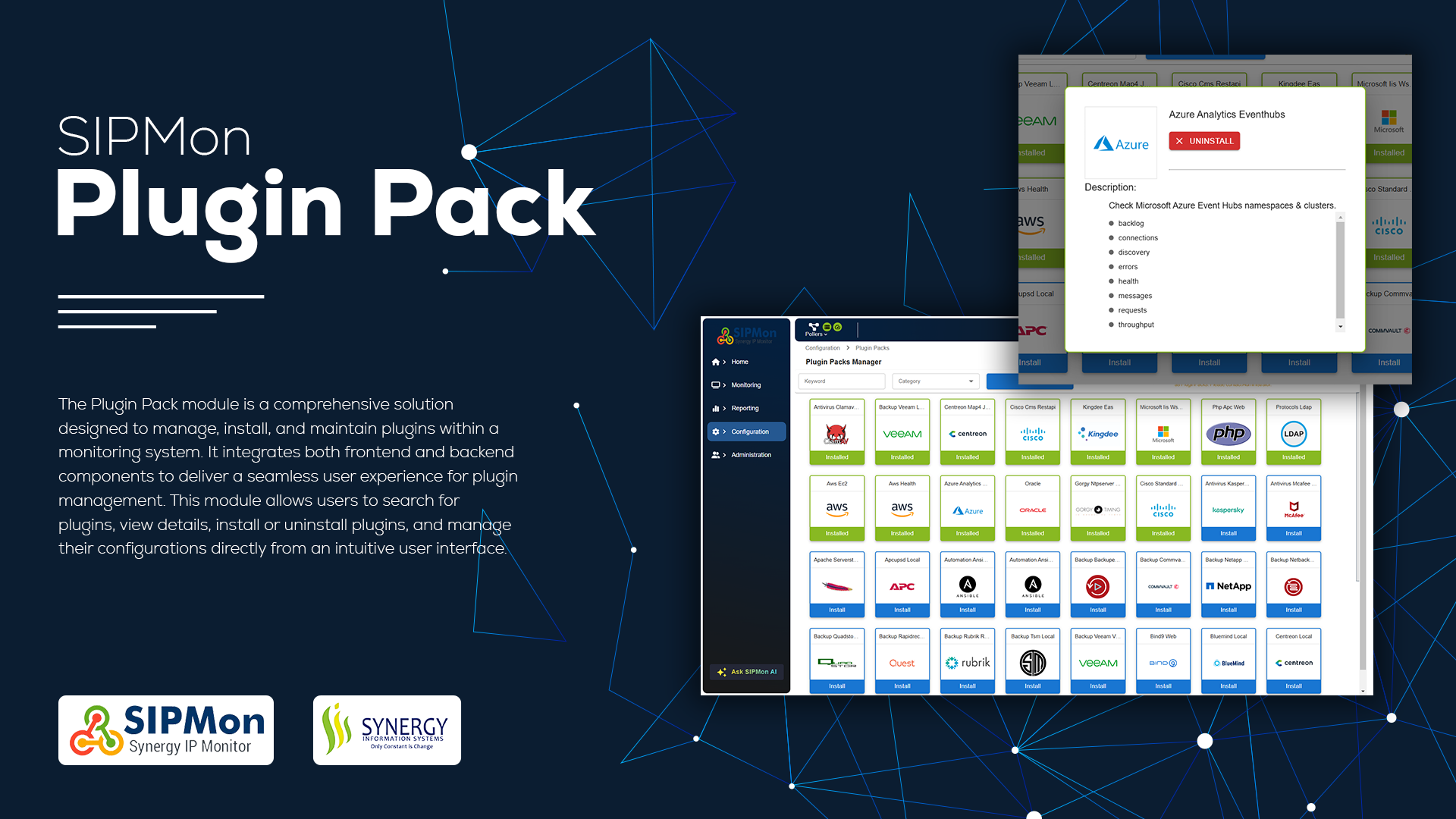 Figure: Plugin Pack Module Overview
Welcome to the Plugin Pack Module! This module is designed to provide users with a seamless and efficient way to manage plugin packs within their application. Whether you are an administrator or a regular user, this module offers a range of features to help you search, install, uninstall, and view detailed information about various plugin packs. The user-friendly interface ensures that all actions can be performed with ease and confidence.
Plugin Pack Catalogue
Installation Module
This is how to install the module
Install the SIPMon Plugin Pack module.
Key Features
Search and Filter:
- Keyword Search: Quickly find specific plugin packs by entering keywords.
- Category Filter: Narrow down your search results by selecting from a list of predefined categories.
Install and Uninstall:
- One-Click Install: Easily install new plugin packs with a single click.
- Safe Uninstall: Remove plugin packs with confidence, thanks to confirmation dialogs that prevent accidental uninstallation.
View Details:
- Detailed Information: Access comprehensive details about each plugin pack, including descriptions, modes, and services using the plugin.
- Visual Feedback: Loading indicators and status updates provide real-time feedback on your actions.
Admin Controls:
- Install and Uninstall: Administrators have the ability to install and uninstall plugins, ensuring that the system remains up-to-date and secure.
- Reinstall Plugins: Administrators can reinstall plugins to ensure they are up-to-date.
- Usage Check: Verify if a plugin is in use before uninstalling it to avoid disrupting services.
User Experience
- Intuitive Interface: The module features a clean and modern design, making it easy to navigate and use.
- Responsive Design: Enjoy a seamless experience across different devices and screen sizes.
- Immediate Feedback: Users receive instant feedback on their actions, such as loading indicators during installations and confirmation dialogs for critical actions.
How to Use
Searching for Plugin Packs
- Enter Keywords: Use the search bar to type in relevant keywords.
- Select Category: Choose a category from the dropdown menu to filter the results.
- Initiate Search: Click the "Search" button to display the filtered plugin packs.
Viewing Plugin Pack Details
- Open Modal: Click on a plugin pack tile to open a modal with detailed information.
- Review Details: The modal provides a comprehensive overview, including the plugin's description, modes, and services using the plugin.
Installing a Plugin Pack (Admin Only)
- Click Install: Press the "Install" button on the plugin pack tile.
- Monitor Progress: A loading indicator will show the installation progress.
- Confirm Installation: Once installed, the status will update to "Installed".
During the installation process, the module automatically generates the necessary commands and service templates for the plugin. This includes:
- Command Templates: Predefined commands that the plugin will use for monitoring.
- Service Templates: Templates that define how the plugin's services will be monitored.
- Host Templates: Templates that define the host configurations for the plugin.
These templates ensure that the plugin is seamlessly integrated into the monitoring environment without requiring manual setup.
Uninstalling a Plugin Pack (Admin Only)
- Click Uninstall: Press the "Uninstall" button on the plugin pack tile.
- Confirm Action: A confirmation dialog will appear to ensure the action is intentional.
- Complete Uninstallation: Confirm the action to proceed with the uninstallation.
During the uninstallation process, the module will:
- Remove Command Templates: Delete the predefined commands associated with the plugin.
- Remove Service Templates: Delete the service templates associated with the plugin.
- Remove Host Templates: Delete the host templates associated with the plugin.
This ensures that all configurations related to the plugin are cleanly removed from the system.
Reinstalling a Plugin Pack (Admin Only)
- Click Reinstall: Press the "Reinstall" button on the plugin pack tile.
- Confirm Action: A confirmation dialog will appear to ensure the action is intentional.
- Complete Reinstallation: Confirm the action to proceed with the reinstallation.
Administrator Controls
- Install and Uninstall: Administrators have the ability to install and uninstall plugins, ensuring that the system remains up-to-date and secure.
- Check Plugin Usage: Administrators can verify if a plugin is currently in use before proceeding with uninstallation.
- Reinstall Plugins: Ensure plugins are up-to-date by reinstalling them as needed.
Additional User Manual
Additional user manual of plugin pack module.
Conclusion
The Plugin Pack Module is designed to simplify the management of plugin packs, providing a user-friendly interface and powerful features for both regular users and administrators. With its intuitive design, responsive feedback, and comprehensive controls, users can efficiently manage their plugin packs with confidence and ease.