SIPMon IP Phone Module
 Figure 1: SIPMon IP Phone Module Home Screen
Introduction
The SIPMON IP Phone Module lets users easily view, scan, and monitor Cisco IP phones connected to Cisco CUCM. This guide is designed for normal users—not developers—and explains how to use the module step‑by‑step.
What You Can Do with This Module
- View all IP phones registered in CUCM
- Run phone scans to refresh the list
- See phone information (extension, model, IP, MAC)
- Add discovered phones into monitoring (if enabled)
- Identify active vs inactive phones
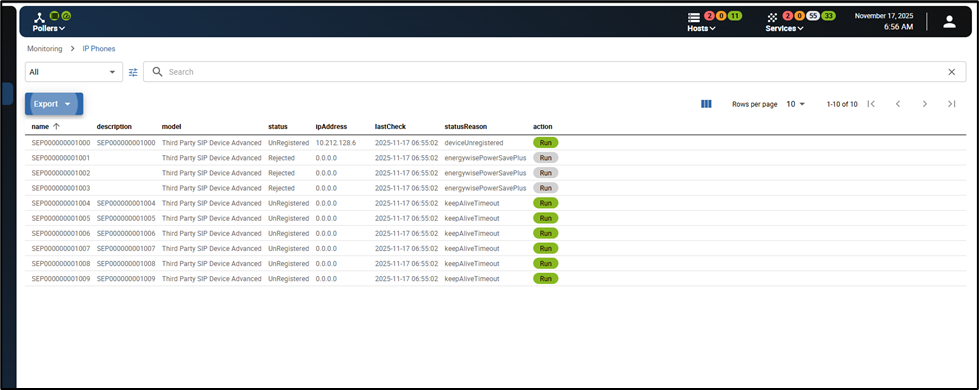 Figure 2: SIPMon IP Phone Module Interface
Requirements
Before using the module, make sure you have:
- Access to the SIPMON module from the web interface
- CUCM (Cisco Call Manager) devices in your organization
Your administrator will handle all installation and backend setup.
Accessing The Module
In SIPMon, open the menu and look for: Monitoring → SIPMON IP Phones
On this page, you will see:
- A list of phones
- Status information
Scanning Phones
A scan checks CUCM for all phones and updates the display. The phone list will refresh and show the latest information.
After a scan, you will see:
- Extension
- Phone model
- MAC address
- IP address
- Status (Active / Inactive)
Adding Phones to SIPMon Monitoring
There are two types of setups:
Auto‑Registration Enabled (most common) Phones are added to SIPMon automatically. You can find them under: Configuration → Hosts
Phone Status Explained
Active
- Phone is online and registered in CUCM
- Shows correct IP address
Inactive
- Phone is offline, unplugged, or not registered
- Shows IP as
0.0.0.0 - Inactive phones cannot be added to monitoring until they become active again.
Viewing Full Phone Details
Click on a RUN button to view:
- Extension
- Device name
- Model
- MAC address
- IP address
- Last seen time
This helps identify specific devices easily.
 Figure 3: SIPMon IP Phone Module Phone View
Common Issues & Solutions
❗ Phone not showing in the list
- Phone may not be registered in CUCM
- Try running Scan Phones again
- Ensure phone is powered on
❗ Phone Shows IP as 0.0.0.0
- The phone is inactive
- Ask IT to confirm the device status
Summary
The SIPMON IP Phone Module allows you to:
- Scan all Cisco phones easily
- View phone details
- Identify active/inactive devices
- Add phones to SIPMON monitoring (if enabled)
The interface is simple and designed for daily use by non‑technical staff.
