SIPMon Advanced Reporting Module
The SIPMon Advanced Reporting module, powered by BIRT (Business Intelligence and Reporting Tools), enables the generation of comprehensive reports across three key categories Availability Reports, Network Reports, and Capacity Reports,Profiling These reports deliver valuable insights into performance metrics and system health, helping users monitor and optimize their infrastructure effectively while facilitating informed decision-making through detailed visualizations and data analysis.
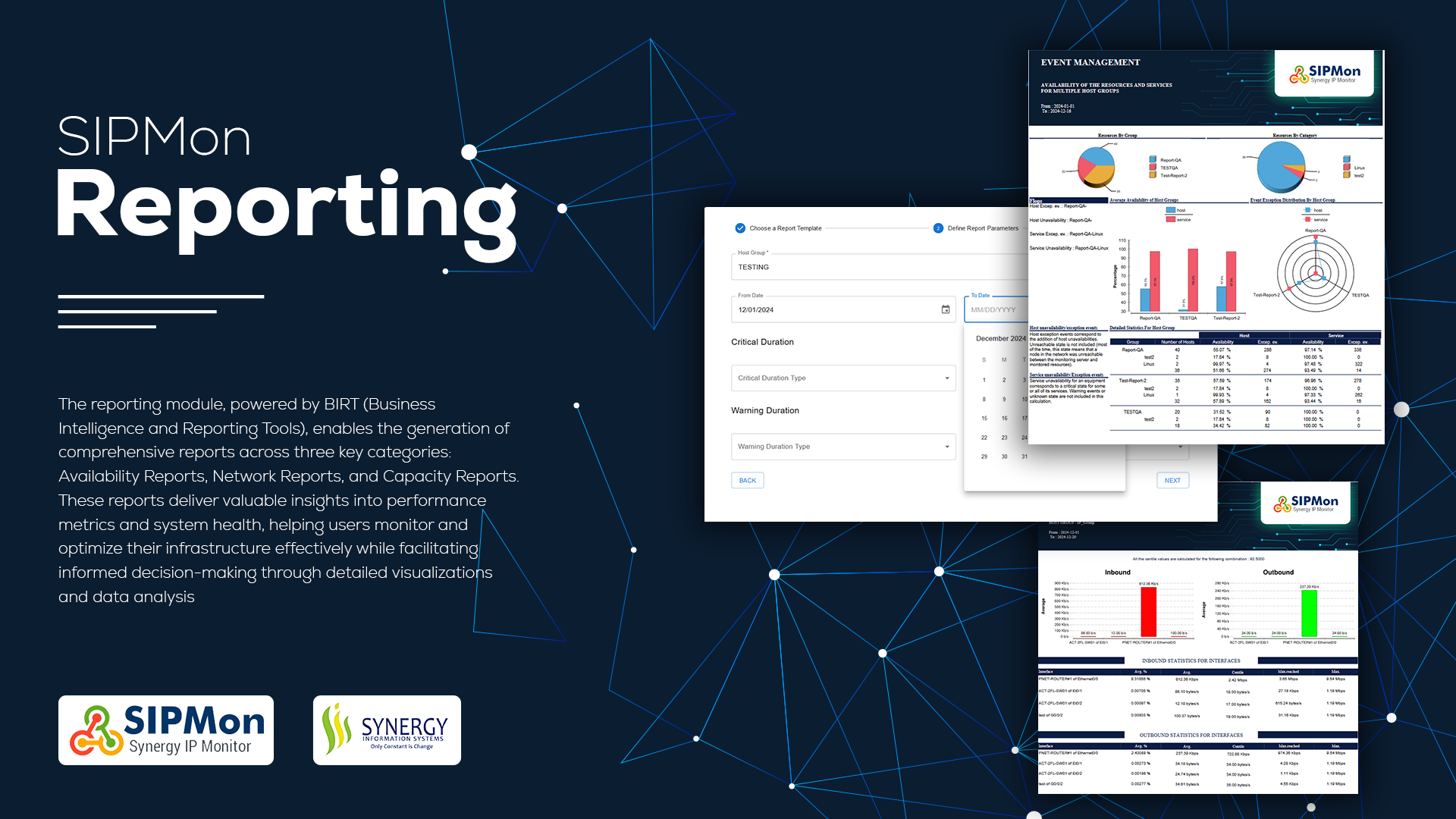 Figure: Advanced Reporting Dashboard Overview
Features
- Manage Report: Effortlessly edit your reports by clicking the edit icon, which opens a side panel for seamless modifications.
- Preview Report: Quickly preview your reports before finalizing them.
- Download Report: Download your reports in PDF format for offline access and sharing.
- Copy/Duplicate Report: Create a copy of an existing report to reuse its configuration or make quick modifications.
- Regenerate Report: Refresh or regenerate a report to update its data with the latest available information.
- Delete Report: Remove unwanted reports from the system to keep your workspace organized.
 Figure: Report Management Action List
 Figure: Additional Report Actions
Getting Started
Follow the steps below to create your first report using the SIPMon Advanced Reporting module.
Types of Report Categories
The SIPMon Advanced Reporting module allows you to generate the following types of reports:
- Availability & Events: Provides insights into hostgroup availability, incidents, and current events.
- Capacity & Performance: Analyzes performance metrics, storage capacity, and resource usage.
- Profiling: Detailed statistics on equipment performance, including availability, events, memory, traffic and cpu usage.
Generate the Report
To create a new report, click the Add button. This will open a step-by-step process (stepper) that guides you through the report creation process. You can configure and customize your report according to your requirements at each step.
Steps to Create a Report
To create a report, follow these three steps:
- Choose Report Template: Select a suitable template for your report from the available options.
- Define Parameters: Specify the parameters and criteria that will shape the content and scope of your report.
- Execution Plan: Configure the execution plan to schedule and run the report generation process.
To visually guide you through these steps, refer to the image below:
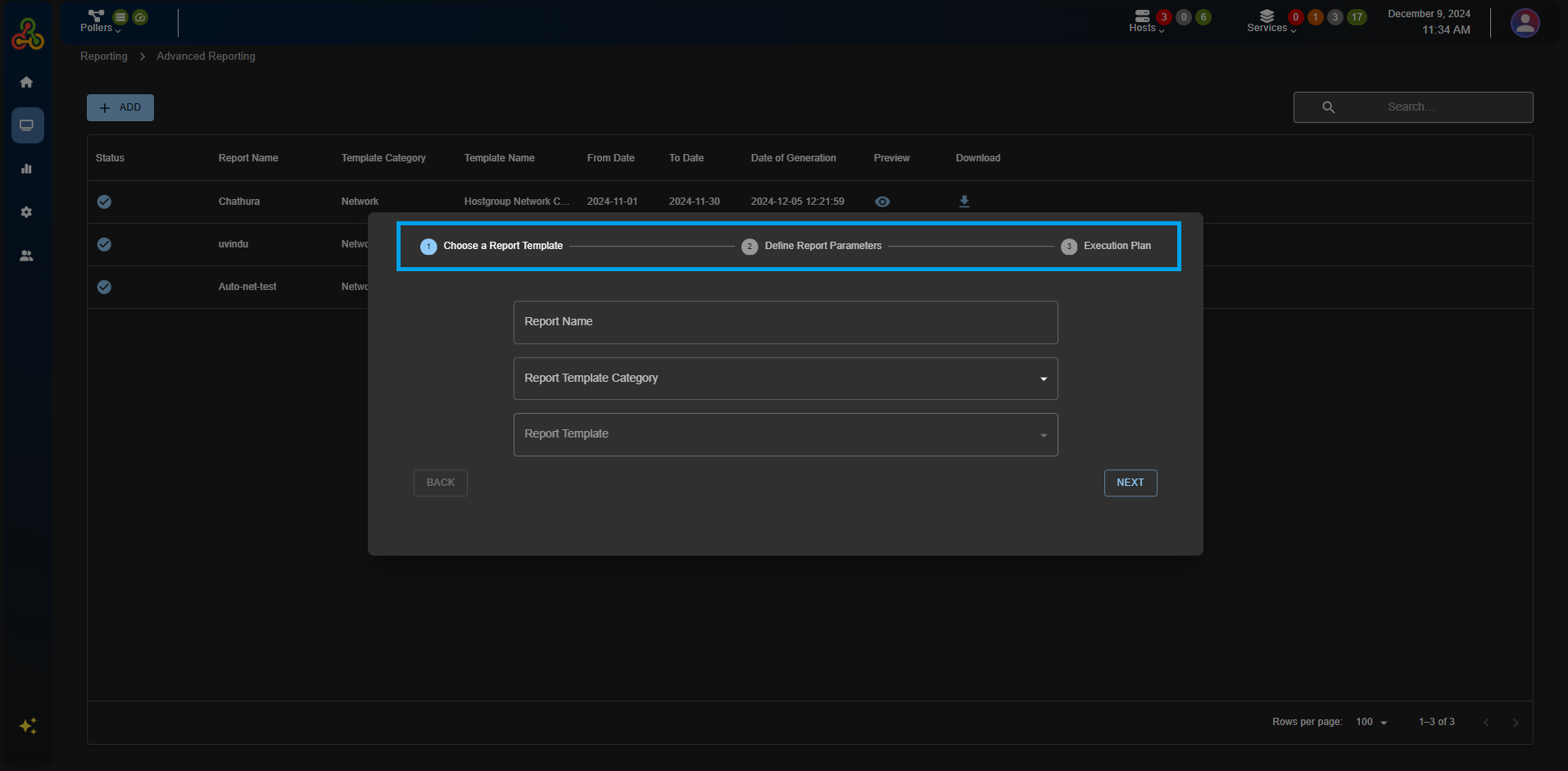 Figure: Steps to Create an Availability and Event Report