import Tabs from '@theme/Tabs'; import TabItem from '@theme/TabItem';
This chapter describes advanced procedures to secure your Sipmon MAP and MAP (Legacy) platform.
If you want to use MAP and MAP (Legacy) in HTTPS, you must both secure your Sipmon platform and MAP (or MAP Legacy). Follow this procedure if you need to secure your Sipmon platform.
Mistakes when editing configuration files can lead to malfunctions of the software. We recommend that you make a backup of the file before editing it and that you only change the settings advised by Sipmon.
Configure HTTPS/TLS on the MAP (or MAP Legacy) server
HTTPS/TLS configuration with a recognized key
This section describes how to add a recognized key to the Sipmon MAP (or MAP Legacy) server.
If you want to create an auto-signed key and add it to your server, please refer to the following section
You will require:
- A key file, referred to as key.key.
- A certificate file, referred to as certificate.crt.
Access the Sipmon MAP server through SSH and create a PKCS12 file with the following command line:
shellopenssl pkcs12 -inkey key.key -in certificate.crt -export -out keys.pkcs12Import this file into a new keystore (a Java repository of security certificates):
Replace the keystore-pass value "xxx" with the password you used for the keystore and adapt the path (if it was changed) to the keystore.
HTTPS/TLS configuration with an auto-signed key
Activate TLS profile of Sipmon MAP service
To change the default port, refer to the dedicated procedure.
Don't forget to modify the URL on Sipmon side in the Map server address field in the Administration > Extensions > Map > Options menu.
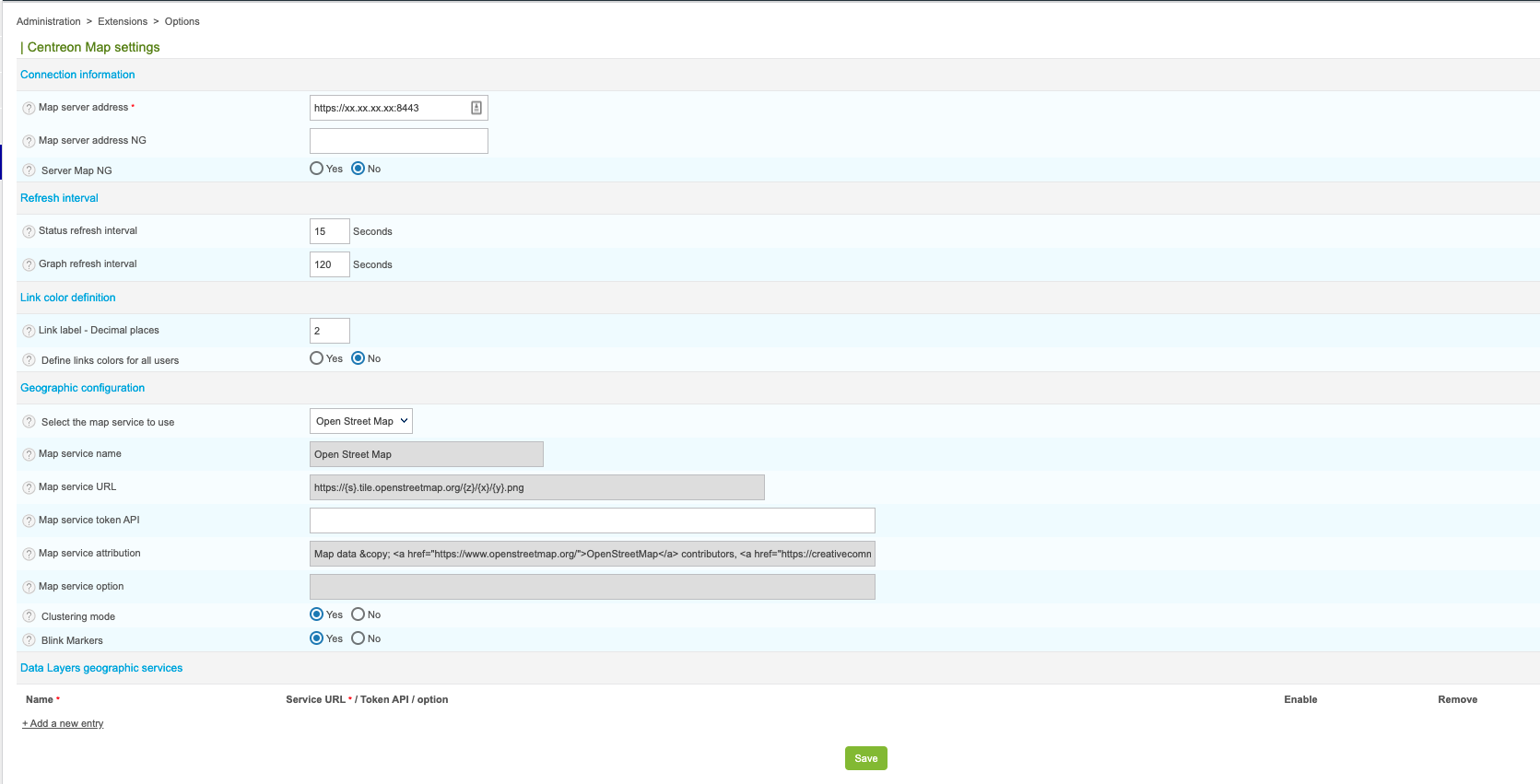
Configure TLS on the Broker connection
An additional Broker output for Sipmon Central (Sipmon-broker-master) has been created during the installation.
You can check it in your Sipmon web interface, from the Configuration > Pollers > Broker Configuration, by editing the Sipmon-broker-master configuration.
The output configuration should look like this:
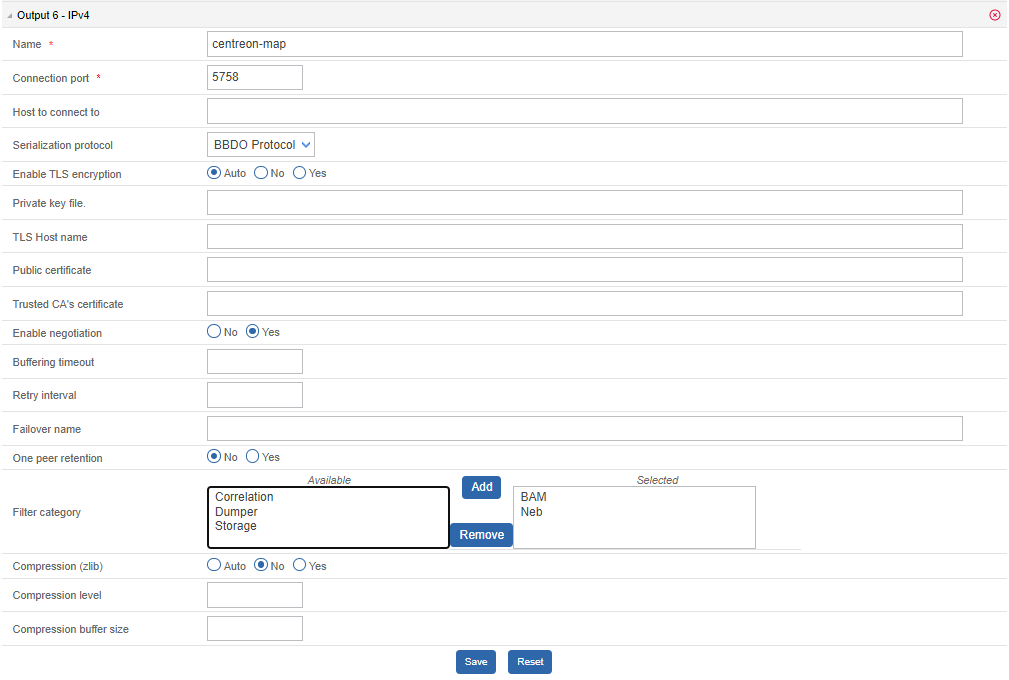
Broker configuration
You can enable TLS output and set up Broker's private key and public certificate as described below:
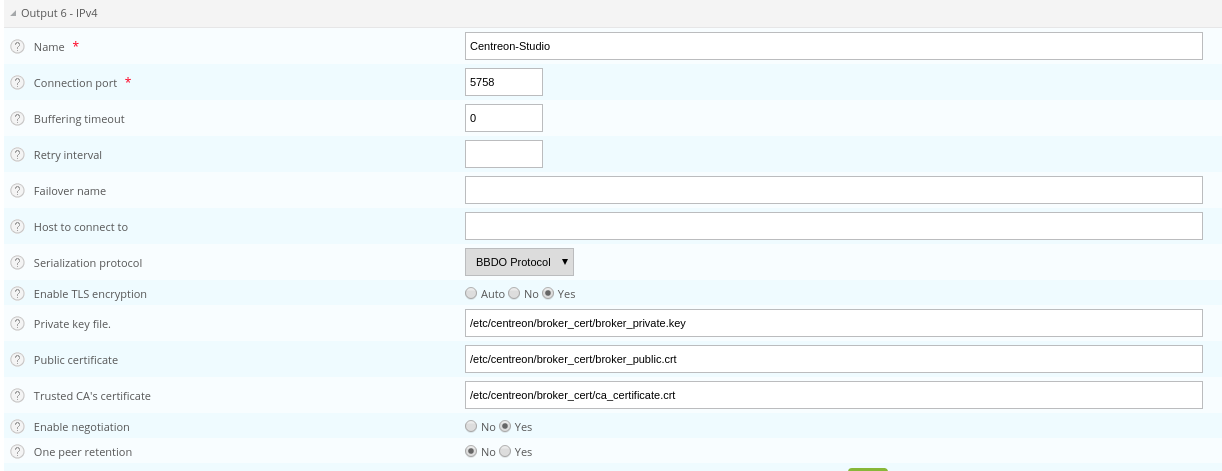
Create a self-signed certificate with the following commands:
textopenssl req -new -newkey rsa:2048 -nodes -keyout broker_private.key -out broker.csr openssl x509 -req -in broker.csr -CA ca.crt -CAkey ca.key -CAcreateserial -out broker_public.crt -days 365 -sha256Copy the private key and the certificate into /etc/Sipmon/broker_cert/ directory:
textmv broker_private.key /etc/Sipmon/broker_cert/ mv broker_public.crt /etc/Sipmon/broker_cert/
"Trusted CA's certificate" field is optional. If you activate Broker's client authentication by setting this "ca_certificate.crt", then you must setup a keystore for MAP server
You MUST push the new broker configuration and restart the broker after configuration.
MAP server configuration
You must secure your Sipmon platform with HTTPS.
Sipmon.url=https://<server-address>To enable TLS socket connection with Broker:
broker.tls=trueConfiguration with a self signed certificate
If the Broker public certificate is self signed, you must create a trust store containing given certificate or its CA certificate with the following command line:
Configuration with a recognized CA certificate
If the broker public certificate is signed with a recognized CA, the JVM default trust store "cacerts (/etc/pki/java/cacerts)" will be used. Nothing to configure for Sipmon MAP service.