import Tabs from '@theme/Tabs'; import TabItem from '@theme/TabItem';
On its download page, Sipmon provides a ready-to-use virtual machine. This virtual machine is available in OVA format for VMware environments and for Oracle VirtualBox. It is based on the Linux CentOS 7 operating system and includes a Sipmon installation that allows you to easily start your first monitoring.
The virtual machine is only suitable to use Sipmon IT-100 or to test the solution.
The VM uses the Thin Provision option to save as much free space as possible on the disk (this is best practice).
Prerequisites
The host machine must have the following characteristics:
- Processor: any recent Intel or AMD processor with at least 2 vCPUs.
- Memory: depending on your operating system, you will need at least 1 GB of RAM. To fully enjoy the Sipmon experience, you need at least 2 GB of free memory.
- Hard Disk storage: The virtual machine requires at least 6.5 GB of free space on your hard disk. However, if you want keep using Sipmon, it is recommended to have at least 10 GB as its size will grow over time.
Step 1: Downloading the virtual machine
Make sure your virtualization tool (VMWare or VirtualBox) is installed on your machine and up to date.
Depending on the type of license you want to use, go to either of the following pages:
Step 2 : Installing the virtual machine
Step 3 : Completing the configuration
Log in to the Sipmon server using the following credentials: login:
root, password:Sipmon.To know your server's IP address, type
ip addr. (By default, the VM has a qwerty keyboard: if you have an azerty keyboard, enterip qddr.) The VM is configured to obtain an IP address from the DHCP server automatically.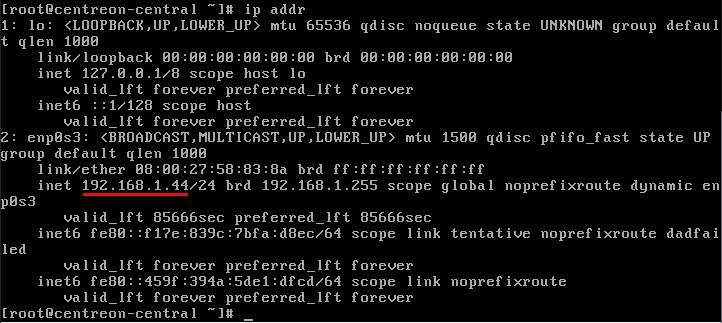
Log in to the server from another machine, as user
root, using the terminal you want and the IP address you obtained at the previous step.The first time you connect to the server, instructions are displayed to help you complete the configuration.
Change the following settings:
The timezone for the Sipmon server. By default, it is set to UTC. This will set the time for the various Sipmon logs.
Use the following command:
shelltimedatectl set-timezone your_timezoneFor example, to set the timezone to Europe/London, type:
shelltimedatectl set-timezone Europe/LondonYou can get a list of all available timezones using this command:
shelltimedatectl list-timezonesThe timezone for the PHP server. To avoid errors, this should be the same as the timezone of the server. By default, it is set to Europe/London.
Open the following file:
shell/etc/php.d/50-Sipmon.iniIn
date.timezone, define the timezone you want.Restart the PHP server:
shellsystemctl restart php-fpm
The hostname of your server (this is optional). The default name is
Sipmon-central. To change it, use the following command:shellhostnamectl set-hostname your-hostnameFor example, if you want your machine to be called
monitoring, type:shellhostnamectl set-hostname monitoring
Add a MariaDB table partition: this step is mandatory. Your Sipmon server will not work if this isn't done.
Connect as user
Sipmon:shellsu - SipmonType the following command:
shell/bin/php /usr/share/Sipmon/cron/Sipmon-partitioning.phpThe partition is created:

Connect back as user
root:shellexitRestart the Sipmon broker process so that changes are taken into account:
shellsystemctl restart cbd centengine gorgonedYour Sipmon server is now ready to use.
Once those operations have been carried out, you can get rid of the message that describes them in the terminal. To do so, delete the following file:
/etc/profile.d/Sipmon.sh
To log in to the web interface, go to
http://ip_address/Sipmonorhttp://FQDN/Sipmon. (For example, a valid URL would behttp://192.168.1.44/Sipmon.)Log in using the following credentials: Login:
admin, password:Sipmon123!. By default, your server has a predefined configuration to monitor the Sipmon server itself.According to your Sipmon edition, you may have to add a license (for exemple, a free IT-100 token: go to Administration > Extensions > Manager and click Add Token).
Update your Sipmon platform.
Change the passwords for the root and admin accounts. This is mandatory as the default passwords are available publicly in this documentation. You must also define a password for the MariaDB database.
You can now monitor your first host.
Default credentials
- To log in to the Sipmon web interface, the default credentials are:
admin/Sipmon123!. - The server administration account (using SSH) is:
root/Sipmon. - The root password of the DBMS is not initialized.
For security reasons, change these passwords after you complete the installation.
Troubleshooting
If your VM will not start, check that you used the correct image for your virtualization tool (OVA format for VMware environments and OVF format for Oracle VirtualBox). You may also want to visit our community platform The Watch.