Steps to Generate the Report
Step 1: Provide Report Details
- Report Name: Enter the name of the report.
- Template Name: Select the appropriate template name.
- Template Category: Choose the relevant template category.
- Click on the Next button to proceed.
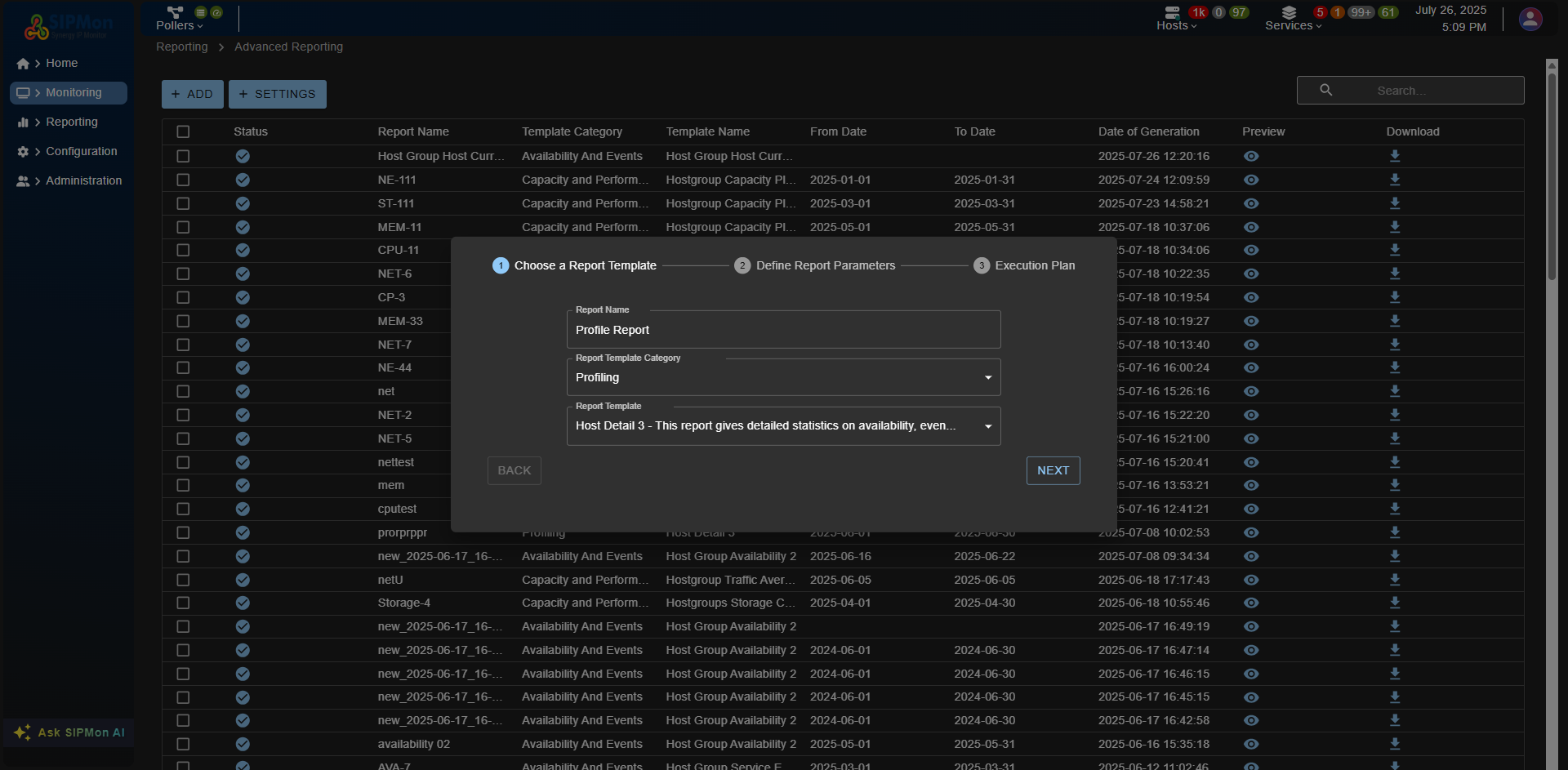 Figure: Step 1 - Provide Report Details
Step 2: Define Parameters
Hostid: Select the host group for which the report is to be generated.
Storage: Specify the storage details.
Memory: Specify the memory details.
Network Interface: Specify the network interface details.
CPU: Specify the CPU details.
Inputs: Provide any additional input parameters required for the report.
Select Month: Choose the month for which the report is to be generated.
From Date: Specify the start date for the report.
To Date: Specify the end date for the report.
Critical and Warning Duration: Specify the duration for critical and warning alerts.
Click on the Next button to proceed.
 Figure: Step 2 - Define Parameters
Step 3: Execution Plan
- Execution Plan: Select the execution plan for the report.
- Click on the Done button to proceed.
 Figure: Step 3 - Execution Plan
Step 4: Save the Report
- Review the report details and parameters.
- Click on the Save button to save the report.
 Figure: Step 4 - Save Report
By following these steps, you can successfully generate and save the Hostgroup Storage Capacity-2 report
 Figure: Final Report Output